Windows 11 移除 WMIC 后,如何让依赖 wmic 的老程序继续工作
一套通用的 wmic 兼容垫片 方案:不装回废弃二进制,让老程序零改动继续跑。
适用系统:Windows 11 24H2 / 25H2 / 26H1(2026 年 8 月更新及以后)
目录
一、问题:wmic 没了,倒下的不止一个程序 1.1 现象 2026 年 8 月起,Windows 11 的 24H2 / 25H2 / 26H1 更新彻底删除了 wmic.exe ,不再作为「可选功能」提供 —— 你在「设置 → 系统 → 可选功能」里已经搜不到它了。
麻烦在于:wmic 曾经是过去十几年里最顺手的系统查询命令行,
表现
说明
直接报「不是内部或外部命令」
最直白的一种,程序会把命令的错误输出打出来
静默拿到空结果 最坑的一种。程序不报错,只是某个功能「检测不到」
把退出码 1 当成失败并中断
有些程序只看退出码,直接走进错误分支
功能入口消失 / 按钮变灰
检测失败的连带结果
关键在于:第二种最难查 。程序看起来一切正常,就是不工作。
本文用蓝凌 KMSS 的 IDEA 插件「代码合并工具」作为贯穿案例 —— 它就属于第二种,附录 C ,
1.2 谁会中招 只要程序内部 shell out 到 wmic,就会中招。实际遇到过的类别:
类别
典型场景
IDE / 编辑器插件
检测 IDE 安装路径、枚举进程、取硬件信息
构建与发布脚本
.bat / .cmd / .ps1 里查进程、查磁盘、查服务
运维 / 巡检脚本
采集 CPU、内存、磁盘、服务状态
安装包 / 静默部署脚本
前置检查、卸载旧版本、检测进程占用
监控采集器 / 资产盘点工具
上报硬件序列号、系统版本、补丁列表
老版本业务系统客户端
启动时做环境自检
判断方法很简单:在你自己的脚本或程序目录里搜一下 wmic (见 2.2 )。
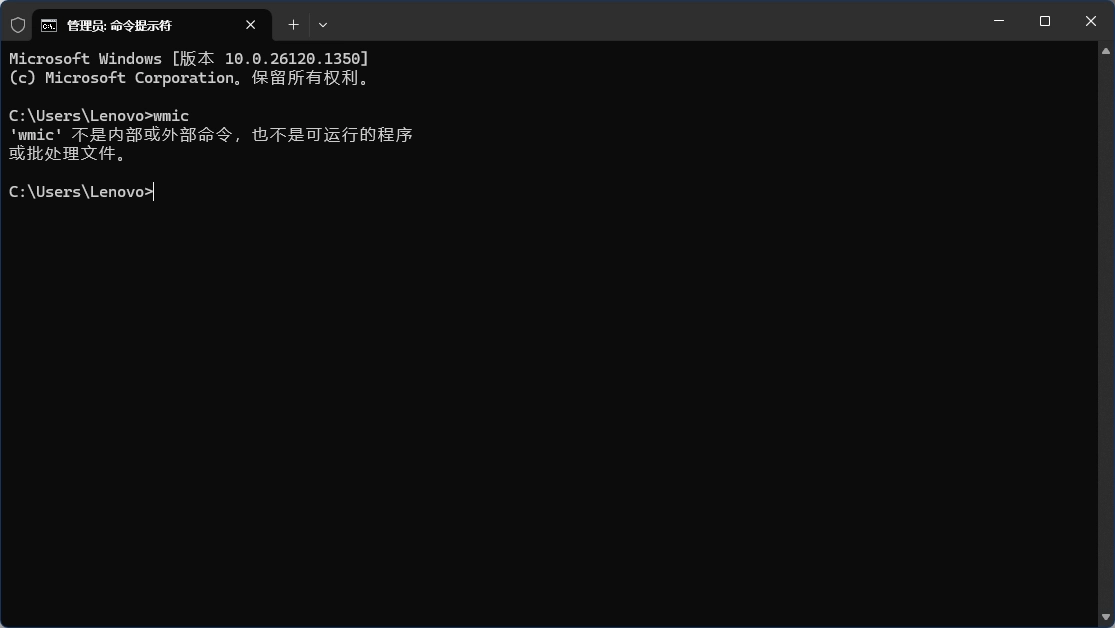
1.3 报错长什么样 英文系统:
1
2
'wmic' is not recognized as an internal or external command, operable program or batch file.
中文系统:
1
2
'wmic' 不是内部或外部命令,也不是可运行的程序 或批处理文件。
静默型(没有报错,只有程序自己的日志):
1
2
ideaPath64 为空 检测失败:未获取到目标信息
1.4 关键认知:WMI 还在,只是外壳没了 这是整件事里最重要的一点,也是后面所有方案成立的基础:
被移除的只是 wmic.exe 这个命令行外壳。WMI 服务本身完全正常。
wmic 只是一层「把命令行翻译成 WMI 查询」的皮。剥掉它,Win32_Process、Win32_OperatingSystem、Win32_Service …)Get-CimInstance 查得到的东西和以前完全一样。
所以问题不是「能力没了」,而是「调用约定变了 」。把老的调用约定补回来 —— 这就是本方案的全部思路。
二、先判断:是不是中了这一枪 2.1 三步定位法 别急着动手,先花十分钟确认三件事:
1
2
3
4
5
6
7
8
第 1 步 它到底在调什么? └─ 拿到程序执行的那条完整命令行(关键证据) 第 2 步 wmic 是真的没了,还是 PATH / 权限问题? └─ 排除「其实只是环境变量被改坏了」 第 3 步 它需要什么输出?有没有绕过的口子? └─ 决定是「改配置」还是「补命令」
第 3 步决定方案选择:
第 3 步的结论
走哪条路
程序提供了手工指定路径的入口(可编辑输入框)
直接填,收工
程序有配置文件,且代码真的会读回
改配置文件,收工
只能自动检测,没有绕过口子
走第四章 的垫片方案
⚠️ 「有配置文件」不等于「改了有用」。案例里那个插件就把路径写进.idea/kmss_dev_config.xml,但全 jar 没有任何代码读回它 ——
2.2 找出程序执行了哪条命令 按可行性从高到低:
手段
适用
怎么做
程序自己的日志 首选,最省事
搜关键字 wmic、exec、command、bat、厂商名
进程监控 程序无日志、需要看进程调用
Process Monitor,过滤 Operation = Process Start,看 Command Line 列
ETW / Sysmon 不方便装工具
Sysmon 事件 ID 1(进程创建)带完整命令行
字符串搜索 程序是脚本、jar、exe
在文件里直接搜 wmic 明文
反编译 jar / .NET 程序
javap(Java)、dnSpy(.NET)
手动复现 已知命令
在 cmd 里原样敲一遍,看真实报错
案例中的证据就是这样拿到的 —— 插件日志里直接写着它执行的命令,附录 C )。
💡 拿到命令行后,先把它原样在 cmd 里跑一遍 。
2.3 确认 wmic 的真实状态 1 2 3 4 5 6 7 8 9 10 11 12 13 14 15 Test-Path "$env:SystemRoot \System32\wmic.exe" Test-Path "$env:SystemRoot \System32\wbem\wmic.exe" cmd /c "where wmic" Get-Service Winmgmt | Format-List Name, Status, StartTypeGet-CimInstance Win32_OperatingSystem | Select-Object Caption, Version
如果第 3、4 步异常,那是另一类问题(WMI 仓库损坏),不在本文范围。
2.4 微软官方时间线 摘自微软 KB5067470《Windows Management Instrumentation Command-line (WMIC) removal from Windows》:
时间
状态
2021
Windows 10 21H2 起标记为弃用
2022
Win11 22H2 作为「可选功能」预装并默认启用
2024
Win11 23H2 / 24H2 默认禁用 ,仍可作可选功能安装
2025
升级到 25H2 时被移除,仍可作可选功能装回
2026-08 从 24H2 / 25H2 / 26H1 彻底移除,不再作为可选功能提供
所以「可选功能里搜不到 wmic」是正常现象,不是机器有问题 。全部失效 。
2.5 先别急着 DISM 网上流传一条命令,号称能把 WMIC 装回来:
1 DISM /Online /Add-Capability /CapabilityName:WMIC~~~~
实测:会显示「操作成功完成」,但实际什么都没装,wmic 依然找不到。
原因(已逐项验证):
组件存储里还留着 Microsoft-Windows-WMIC-FoD-Package* 的元数据(.mum / .cat),
但 wmic.exe 的实际载荷已被删除 —— 全盘 WinSxS 里只剩 wmi-wmiclntwmic.exe;
也没有待重启标记(RebootPending = False),所以不是「重启一下就好」。
这与 KB 的说法一致:WMIC 已不再作为 Feature on Demand 提供 。
⚠️ 这个坑值得单独记一笔:DISM 报「操作成功完成」不代表装上了 。
三、方案对比
#
方案
需要管理员
优点
缺点
适用
1
程序界面里手工指定路径
—
成本最低
多数程序没这个入口(案例中是只读标签)
先试
2
改程序的配置文件
—
不用装东西
必须确认代码真的读回 该值
视程序而定
3
微软官方临时包 wmic_dlc.zip
✅
官方出品,装回真 wmic.exe,所有程序零改动
塞回已弃用二进制;微软声明只是临时方案
想让流程与现有文档保持一致
4
wmic 兼容垫片(本方案) ✅ / 可选免管理员
不引入废弃二进制;可控、可扩展、可卸载
自制件需自己维护;只覆盖常见语法
推荐
5
推动上游改用 Get-CimInstance
—
治本
依赖厂商排期
建议同步推进
6
降级 / 更换系统
—
立刻可用
代价大,且不解决长期问题
不推荐
方案 3 的官方包在 KB5067470 里,链接指向 download.microsoft.com。Set-ExecutionPolicy Bypass -Scope Process 再 .\install.ps1。
方案 3 与方案 4 怎么选 :
四、部署 wmic 兼容垫片 4.1 原理 一句话:做一个假的 wmic,把命令翻译成 PowerShell 执行。
1 2 3 4 5 6 7 8 9 10 11 12 13 老程序 / 插件 │ cmd /c wmic process where name='xxx.exe' get processid,executablepath ▼ cmd.exe 沿 PATH 解析 wmic │ System32\wmic.exe ✗ 已不存在 → 继续往后找 ▼ 命中 C:\Windows\System32\Wbem\wmic.cmd ← 转接头(该目录本来就在 PATH 上) │ 把参数原样转发 ▼ wmic-shim.ps1 │ 解析别名 / where / get → Get-CimInstance 查 WMI ▼ 按 wmic 原格式输出 → 老程序解析到它要的东西
为什么 cmd 会选中我们的 wmic.cmd?
cmd.exe 解析 wmic 时的顺序是:逐个 PATH 目录,在每个目录里按 PATHEXTwmic.com → wmic.exe → wmic.bat → wmic.cmd。
System32\ 和 C:\Windows\ 里都没有 wmic.*,于是继续往后找,System32\Wbem\wmic.cmd(PATHEXT 默认含 .CMD)。
前提是 wmic.exe 已经被删干净 —— 正是这个方案的成立条件。wmic.exe 还回来,.EXE 在 PATHEXT 里排在.CMD 前面,垫片会自动「让位」,不会打架。这个设计是刻意留的。
性能 :每次调用多一次 PowerShell 启动,实测 90–500 ms。
4.2 支持的命令范围
命令形态
支持
说明
<别名> where <条件> get <属性,...>✅
主力形态
<别名> get <属性>✅
无过滤条件
<别名> where <条件>✅
输出全部属性,list 格式
<别名>✅
输出全部属性,list 格式
/value、/format:list✅
Prop=Value 形式
/format:csv✅
Node,Prop1,... + 每行前缀主机名
带 wmic / wmic.exe / 完整路径前缀
✅
有些调用方会把整条命令一起传进来
<别名> call <方法>(如 process call create)❌
不处理,静默返回空
/node: /user: /password: 远程查询❌
静默返回空 ,不会用本机数据冒充远程结果
其他子命令(wmic /? 等)
❌
静默返回空
设计原则:不支持的语法一律「静默返回空 + 退出码 0」,绝不报错。
已知别名见 5.1 。不在表里的别名会按 Win32_<首字母大写> 猜一次,5.2 加一行即可。
4.3 文件清单
文件
作用
wmic.cmd核心 。转接头,把参数转发给下面的脚本
wmic-shim.ps1核心 。翻译逻辑:解析 → 查 CIM → 按 wmic 格式输出
安装-wmic垫片.cmd安装到 System32\Wbem(需管理员),自带自检
安装-wmic垫片-免管理员.cmd装到 %USERPROFILE%\wmic-shim + 用户 PATH(免管理员)
卸载-wmic垫片.cmd删除已安装的文件,恢复原状
检查安装状态.cmd一键自检:文件是否到位 / where wmic / 实测查询
全部 6 个脚本源码见附录 A ,也可以直接取用本目录下的同名文件。
4.4 方式一:需要管理员(推荐) 做法 A:双击脚本
右键 安装-wmic垫片.cmd → 以管理员身份运行 。脚本会自动复制文件并做自检。
做法 B:管理员 PowerShell 里粘贴
1 2 3 4 $dst = "$env:SystemRoot \System32\Wbem" Copy-Item "<本目录>\wmic.cmd" $dst -Force Copy-Item "<本目录>\wmic-shim.ps1" $dst -Force cmd /c "wmic process where name='explorer.exe' get processid,executablepath"
优点 :不需要改 PATH,不需要重启程序 ,装完直接重开那个功能即可。
4.5 方式二:免管理员 右键 安装-wmic垫片-免管理员.cmd 运行(无需提权)。它会:
把两个核心文件复制到 %USERPROFILE%\wmic-shim\
通过 setx PATH 把该目录追加到用户级 PATH (不动系统 PATH)
⚠️ 必须完全退出目标程序再重新启动 —— 只有新进程才会带上更新后的 PATH。System32\Wbem 本来就在 PATH 上,省掉重启这一步。
4.6 验证 双击 检查安装状态.cmd,或手动执行:
1 2 3 4 5 6 7 8 9 10 11 12 13 14 15 Test-Path "$env:SystemRoot \System32\Wbem\wmic.cmd" Test-Path "$env:SystemRoot \System32\Wbem\wmic-shim.ps1" cmd /c "where wmic" cmd /c "wmic process where name='explorer.exe' get processid,executablepath" cmd /c "wmic process where name='idea64.exe' get processid,executablepath"
判定标准:
第 3 步有路径 = 垫片工作正常
第 4 步有路径 = 目标程序在运行,它也能检测到
💡 两个坑
在 PowerShell 7 会话里直接敲 wmic 可能仍报「找不到」——
PowerShell 会缓存命令查找结果。自检请用 cmd /c "wmic ...",或新开一个终端。Get-Process <名字>),别误判成失败。
4.7 卸载 右键 卸载-wmic垫片.cmd → 以管理员身份运行,删除 System32\Wbem 下的两个文件即可。%USERPROFILE%\wmic-shim 去掉。
五、扩展垫片 垫片是为常见语法做的通用翻译器 ,不是完整的 wmic 复刻。
5.1 别名映射表 脚本里内置了这些别名(wmic 别名 → CIM 类):
别名
CIM 类
别名
CIM 类
processWin32_ProcessprinterWin32_Printer
osWin32_OperatingSystemprintjobWin32_PrintJob
computersystemWin32_ComputerSystemshareWin32_Share
logicaldisk / filesystemWin32_LogicalDisknetuseWin32_NetworkConnection
volumeWin32_VolumenicWin32_NetworkAdapter
diskdriveWin32_DiskDrivenicconfigWin32_NetworkAdapterConfiguration
partitionWin32_DiskPartitionnetprotocolWin32_NetworkProtocol
cdromWin32_CDROMDriveuseraccountWin32_UserAccount
serviceWin32_ServicegroupWin32_Group
sysdriverWin32_SystemDriverenvironmentWin32_Environment
biosWin32_BIOSstartupWin32_StartupCommand
cpuWin32_ProcessortimezoneWin32_TimeZone
baseboardWin32_BaseBoardqfeWin32_QuickFixEngineering
memorychipWin32_PhysicalMemoryproductWin32_Product
sounddeviceWin32_SoundDevicedesktopWin32_Desktop
shadowcopyWin32_ShadowCopy
不在表里的别名,会先按 Win32_<首字母大写> 猜一次(如 win32_bios → Win32_BIOS),
5.2 加一个别名 找到脚本里的 $AliasMap,加一行即可:
1 2 3 4 5 $AliasMap = @ { 'process' = 'Win32_Process' 'idecontroller' = 'Win32_IDEController' }
怎么知道别名对应哪个类? 两种办法:
1 2 3 4 5 6 7 Get-CimClass -ClassName Win32_IDEController | Select-Object -ExpandProperty CimClassNameGet-CimClass -ClassName Win32_* | Where-Object { $_ .CimClassName -like '*Network*' } | Select-Object -ExpandProperty CimClassName
改完直接测:
1 cmd /c "wmic idecontroller get deviceid,name"
5.3 where 条件的写法 where 后面的内容会原样透传给 WQL (Get-CimInstance -Filter),所以:
写法
支持
备注
name='x.exe'✅
属性名大小写不敏感 ,name / Name 都行
processid=1234✅
数字不用加引号
state='Running'✅
字符串要加引号
name like '%chrome%'✅
% 是通配符
a='1' and b='2'✅
and / or
(a='1' or a='2')✅
括号
where "name='x'"✅
整体被引号包住会自动剥掉
补救机制 :如果首次查询因属性名大小写或拼写失败,自动重试一次 ;
⚠️ where 里引号内的 / 不会被当成开关 ——where caption='a/b' 是安全的,/b 不会被误删。
5.4 输出格式
格式
触发方式
样式
table(默认)
无开关
表头 + 数据行,列宽对齐,列之间两个空格
list
/value、/format:list每行 Prop=Value,实例之间空一行
csv
/format:csvNode,Prop1,... + 每行前缀计算机名
两个刻意做的保真细节 ,都是为了「让老程序解析得出来」:
列按属性名字母序排列 —— 这是 wmic 默认表格输出的行为。get processid,executablepath 得到的是 ExecutablePath ProcessId(字母序),属性名输出规范大小写 —— 你写 get processid,输出的是 ProcessId。
属性名写错时(如 get bogusproperty),垫片返回空 而不是吐一堆空行 ——Invalid property,返回空是更安全的降级。
5.5 调试方法 单独测一条命令 (不经过 cmd,直接看脚本行为):
1 2 3 powershell -NoProfile -ExecutionPolicy Bypass ` -File "C:\Windows\System32\Wbem\wmic-shim.ps1" ` "process where name='explorer.exe' get processid,executablepath"
直接对照 CIM 的原始结果 ,确认是垫片的问题还是 WMI 本来就没数据:
1 2 Get-CimInstance Win32_Process -Filter "Name='explorer.exe'" | Select-Object ProcessId, ExecutablePath
看退出码 (正常应始终是 0):
1 2 wmic process get name >nul echo %ERRORLEVEL%
脚本语法自检 (改完垫片后强烈建议跑一次):
1 2 3 4 $src = Get-Content -Raw "C:\Windows\System32\Wbem\wmic-shim.ps1" $e = $null [void ][System.Management.Automation.Language.Parser ]::ParseInput($src , [ref ]$null , [ref ]$e ) if ($e ) { $e | ForEach-Object { "$ ($_ .Extent.StartLineNumber): $ ($_ .Message)" } } else { "语法 OK" }
六、常见问题 Q:为什么不直接让程序手工填路径? JLabel(只读标签),先按 2.1 第 3 步确认有没有绕过口子 ,再决定。
Q:改程序的配置文件行不行? 真的会读回 这个值。案例里的 ideaPath 是只写不读的缓存,
Q:为什么垫片放在 System32\Wbem 而不是别的地方? 本来就在系统 PATH 上 ,而且正是 wmic.exe 原来的家。
Q:装了垫片之后,以后系统更新会冲突吗? wmic.exe 被恢复,.EXE 在 PATHEXT 中优先于 .CMD,垫片自动让位。
Q:会影响其他用 wmic 的工具吗? 如果某个工具用了垫片不支持的语法,它会拿到空结果 。第五章 扩展,或改用方案 3(官方包)。
Q:怎么知道还有哪些程序在偷偷调 wmic? Operation = Process Start,wmic。或者直接搜你的脚本仓库。
Q:安全软件会报毒吗?
Q:能用 Get-WmiObject 代替 Get-CimInstance 吗? Get-WmiObject 是老的 PowerShell 5.1 写法,PowerShell 7 里已被移除。Get-CimInstance。
附录 A:脚本源码 A.1 wmic.cmd(转接头) 1 2 3 4 5 6 7 8 @echo off setlocal EnableExtensionspowershell -NoProfile -ExecutionPolicy Bypass -File "%~dp0wmic-shim.ps1" %* exit /b %ERRORLEVEL%
A.2 wmic-shim.ps1(翻译逻辑) 1 2 3 4 5 6 7 8 9 10 11 12 13 14 15 16 17 18 19 20 21 22 23 24 25 26 27 28 29 30 31 32 33 34 35 36 37 38 39 40 41 42 43 44 45 46 47 48 49 50 51 52 53 54 55 56 57 58 59 60 61 62 63 64 65 66 67 68 69 70 71 72 73 74 75 76 77 78 79 80 81 82 83 84 85 86 87 88 89 90 91 92 93 94 95 96 97 98 99 100 101 102 103 104 105 106 107 108 109 110 111 112 113 114 115 116 117 118 119 120 121 122 123 124 125 126 127 128 129 130 131 132 133 134 135 136 137 138 139 140 141 142 143 144 145 146 147 148 149 150 151 152 153 154 155 156 157 158 159 160 161 162 163 164 165 166 167 168 169 170 171 172 173 174 175 176 177 178 179 180 181 182 183 184 185 186 187 188 189 190 191 192 193 194 195 196 197 198 199 200 201 202 203 204 205 206 207 208 209 210 211 212 213 214 215 216 217 218 219 220 221 222 223 224 225 226 227 228 229 230 231 232 233 234 235 236 237 238 239 240 241 242 243 244 245 246 247 248 249 250 251 252 253 254 255 256 257 258 259 260 261 262 263 264 265 266 267 268 269 270 271 272 273 274 275 276 277 278 279 280 281 282 283 284 285 286 287 288 289 290 291 292 293 294 295 296 297 298 299 300 301 302 303 304 305 306 307 308 309 310 311 312 313 314 315 316 317 318 319 320 321 322 323 324 325 326 327 328 329 330 331 332 333 334 335 336 337 338 339 340 341 342 343 344 345 346 347 348 349 350 351 352 353 354 355 356 357 358 359 360 361 362 363 364 365 366 367 368 369 370 371 372 373 374 375 376 377 378 379 380 381 382 383 384 385 386 387 388 389 390 391 392 393 394 395 396 397 398 399 400 401 402 403 404 405 406 407 408 409 410 411 412 413 414 415 416 417 418 419 420 421 422 423 424 425 426 427 $ErrorActionPreference = 'SilentlyContinue' try { [Console ]::OutputEncoding = [System.Text.Encoding ]::GetEncoding( [System.Globalization.CultureInfo ]::CurrentCulture.TextInfo.OEMCodePage) } catch { } function Format-WmicValue ($v ) if ($null -eq $v ) { return '' } if ($v -is [array ]) { $parts = @ () foreach ($item in $v ) { $parts += (Format-WmicValue $item ) } return ($parts -join ',' ) } if ($v -is [datetime ]) { return $v .ToString('yyyyMMddHHmmss' ) + '.000000+000' } if ($v -is [bool ]) { if ($v ) { return 'TRUE' } else { return 'FALSE' } } return [string ]$v } function Format-CsvCell ([string]$v ) if ([string ]::IsNullOrEmpty($v )) { return '' } if ($v -match '[",\r\n]' ) { return '"' + ($v -replace '"' , '""' ) + '"' } return $v } function Find-WmicKeyword ([string]$s , [string]$kw ) $inQuote = $false $quoteChar = [char ]0 $n = $s .Length $k = $kw .Length for ($i = 0 ; $i -lt $n ; $i ++) { $c = $s [$i ] if ($inQuote ) { if ($c -eq $quoteChar ) { $inQuote = $false } continue } if ($c -eq "'" -or $c -eq '"' ) { $quoteChar = $c ; $inQuote = $true ; continue } if ($i + $k -gt $n ) { break } if ([string ]::Compare ($s .Substring($i , $k ), $kw , $true ) -ne 0 ) { continue } $before = ' ' if ($i -gt 0 ) { $before = $s [$i - 1 ] } $after = ' ' if ($i + $k -lt $n ) { $after = $s [$i + $k ] } $okBefore = -not ([char ]::IsLetterOrDigit($before ) -or $before -eq '_' ) $okAfter = -not ([char ]::IsLetterOrDigit($after ) -or $after -eq '_' ) if ($okBefore -and $okAfter ) { return $i } } return -1 } function Render-WmicRow ($cells , $widths ) $parts = @ () for ($i = 0 ; $i -lt $cells .Count; $i ++) { if ($i -eq $cells .Count - 1 ) { $parts += [string ]$cells [$i ] } else { $parts += ([string ]$cells [$i ]).PadRight($widths [$i ]) } } return ($parts -join ' ' ) } function Remove-WmicSwitches ([string]$s ) if ([string ]::IsNullOrEmpty($s )) { return $s } $out = New-Object System.Text.StringBuilder $inQuote = $false $quoteChar = [char ]0 $n = $s .Length $i = 0 while ($i -lt $n ) { $c = $s [$i ] if ($inQuote ) { [void ]$out .Append($c ) if ($c -eq $quoteChar ) { $inQuote = $false } $i ++ continue } if ($c -eq "'" -or $c -eq '"' ) { $quoteChar = $c ; $inQuote = $true [void ]$out .Append($c ); $i ++ continue } if ($c -eq '/' -and ($i -eq 0 -or [char ]::IsWhiteSpace($s [$i - 1 ]))) { while ($i -lt $n -and -not [char ]::IsWhiteSpace($s [$i ])) { $i ++ } continue } [void ]$out .Append($c ) $i ++ } return $out .ToString() } function Repair-WmicFilter ([string]$ClassName , [string]$Filter ) $cls = $null try { $cls = Get-CimClass -ClassName $ClassName -ErrorAction Stop } catch { return $Filter } if ($null -eq $cls ) { return $Filter } $out = $Filter foreach ($p in $cls .CimClassProperties) { $name = $p .Name if ([string ]::IsNullOrEmpty($name )) { continue } $pattern = '(?i)\b' + [regex ]::Escape($name ) + '\b(\s*[=<>])' $out = [regex ]::Replace($out , $pattern , ($name + '$1' )) } return $out } function Invoke-WmicShim ([string]$RawArgs ) if ([string ]::IsNullOrWhiteSpace($RawArgs )) { return } $raw = $RawArgs .Trim() if ($raw -match '(?i)/(node|user|password|implevel|authlevel)\s*:' ) { return } $AliasMap = @ { 'process' = 'Win32_Process' 'os' = 'Win32_OperatingSystem' 'computersystem' = 'Win32_ComputerSystem' 'logicaldisk' = 'Win32_LogicalDisk' 'filesystem' = 'Win32_LogicalDisk' 'volume' = 'Win32_Volume' 'diskdrive' = 'Win32_DiskDrive' 'partition' = 'Win32_DiskPartition' 'cdrom' = 'Win32_CDROMDrive' 'service' = 'Win32_Service' 'sysdriver' = 'Win32_SystemDriver' 'bios' = 'Win32_BIOS' 'cpu' = 'Win32_Processor' 'baseboard' = 'Win32_BaseBoard' 'memorychip' = 'Win32_PhysicalMemory' 'sounddevice' = 'Win32_SoundDevice' 'printer' = 'Win32_Printer' 'printjob' = 'Win32_PrintJob' 'share' = 'Win32_Share' 'netuse' = 'Win32_NetworkConnection' 'nic' = 'Win32_NetworkAdapter' 'nicconfig' = 'Win32_NetworkAdapterConfiguration' 'netprotocol' = 'Win32_NetworkProtocol' 'useraccount' = 'Win32_UserAccount' 'group' = 'Win32_Group' 'environment' = 'Win32_Environment' 'startup' = 'Win32_StartupCommand' 'timezone' = 'Win32_TimeZone' 'qfe' = 'Win32_QuickFixEngineering' 'product' = 'Win32_Product' 'desktop' = 'Win32_Desktop' 'shadowcopy' = 'Win32_ShadowCopy' } $sp = $raw .IndexOfAny([char []]@ (' ' , "`t" )) if ($sp -lt 0 ) { $alias = $raw .Trim().ToLower() $rest = '' } else { $alias = $raw .Substring(0 , $sp ).Trim().ToLower() $rest = $raw .Substring($sp ).Trim() } if ([string ]::IsNullOrEmpty($alias )) { return } $dropLead = $false if ($alias -eq 'wmic' -or $alias -eq 'wmic.exe' -or $alias -eq 'wmic.cmd' ) { $dropLead = $true } if ($alias -match '\\wmic(\.exe|\.cmd)?$' ) { $dropLead = $true } if ($dropLead ) { $sp = $rest .IndexOfAny([char []]@ (' ' , "`t" )) if ($sp -lt 0 ) { return } $alias = $rest .Substring(0 , $sp ).Trim().ToLower() $rest = $rest .Substring($sp ).Trim() if ([string ]::IsNullOrEmpty($alias )) { return } } $format = 'table' if ($raw -match '(?i)/format\s*:\s*list\b' ) { $format = 'list' } elseif ($raw -match '(?i)/format\s*:\s*csv\b' ) { $format = 'csv' } elseif ($raw -match '(?i)(^|\s)/value(\s|$)' ) { $format = 'list' } $propText = $null $iGet = Find-WmicKeyword $rest 'get' if ($iGet -ge 0 ) { $propText = $rest .Substring($iGet + 3 ).Trim() $rest = $rest .Substring(0 , $iGet ).Trim() } $whereText = $null $iWhere = Find-WmicKeyword $rest 'where' if ($iWhere -ge 0 ) { $whereText = $rest .Substring($iWhere + 5 ).Trim() $rest = $rest .Substring(0 , $iWhere ).Trim() } $rest = (Remove-WmicSwitches $rest ).Trim() if ($null -ne $propText ) { $propText = (Remove-WmicSwitches $propText ).Trim() } if ($null -ne $whereText ) { $whereText = (Remove-WmicSwitches $whereText ).Trim() } if ($rest .Length -gt 0 ) { return } $props = @ () if (-not [string ]::IsNullOrWhiteSpace($propText )) { foreach ($p in ($propText -split ',' )) { $t = $p .Trim() if ($t .Length -gt 0 -and $t -ne '*' ) { $props += $t } } if ($props .Count -eq 0 ) { $format = 'list' } } else { $format = 'list' } $className = $null if ($AliasMap .ContainsKey($alias )) { $className = $AliasMap [$alias ] } elseif ($alias .StartsWith('win32_' )) { $className = $alias .Substring(0 , 1 ).ToUpper() + $alias .Substring(1 ) } else { $className = 'Win32_' + $alias .Substring(0 , 1 ).ToUpper() + $alias .Substring(1 ) } $filter = $null if (-not [string ]::IsNullOrWhiteSpace($whereText )) { $filter = $whereText if ($filter .Length -ge 2 ) { $f0 = $filter .Substring(0 , 1 ) $fN = $filter .Substring($filter .Length - 1 , 1 ) if (($f0 -eq '"' -and $fN -eq '"' ) -or ($f0 -eq "'" -and $fN -eq "'" )) { $filter = $filter .Substring(1 , $filter .Length - 2 ).Trim() } } } $instances = @ () if ($null -ne $filter ) { try { $instances = @ (Get-CimInstance -ClassName $className -Filter $filter -ErrorAction Stop) } catch { $fixed = Repair-WmicFilter $className $filter if ($fixed -ne $filter ) { try { $instances = @ (Get-CimInstance -ClassName $className -Filter $fixed -ErrorAction Stop) } catch { $instances = @ () } } else { $instances = @ () } } } else { try { $instances = @ (Get-CimInstance -ClassName $className -ErrorAction Stop) } catch { $instances = @ () } } if ($instances .Count -eq 0 ) { return } $canonical = @ {} foreach ($cp in $instances [0 ].CimInstanceProperties) { if (-not [string ]::IsNullOrEmpty($cp .Name)) { $canonical [$cp .Name.ToLower ()] = $cp .Name } } if ($props .Count -eq 0 ) { foreach ($cp in $instances [0 ].CimInstanceProperties) { $props += $cp .Name } } else { $norm = @ () foreach ($p in $props ) { $key = $p .ToLower() if ($canonical .ContainsKey($key )) { $norm += $canonical [$key ] } } $props = $norm if ($props .Count -eq 0 ) { return } } $props = @ ($props | Sort-Object ) if ($format -eq 'list' ) { $first = $true foreach ($inst in $instances ) { if (-not $first ) { Write-Output '' } $first = $false foreach ($p in $props ) { Write-Output ($p + '=' + (Format-WmicValue $inst .$p )) } } return } if ($format -eq 'csv' ) { $hostName = $env:COMPUTERNAME if ([string ]::IsNullOrEmpty($hostName )) { $hostName = [System.Environment ]::MachineName } Write-Output ('Node,' + ($props -join ',' )) foreach ($inst in $instances ) { $cells = @ ($hostName ) foreach ($p in $props ) { $cells += (Format-CsvCell (Format-WmicValue $inst .$p )) } Write-Output ($cells -join ',' ) } return } $rows = @ () foreach ($inst in $instances ) { $cells = @ () foreach ($p in $props ) { $cells += (Format-WmicValue $inst .$p ) } $rows += , $cells } $widths = @ () for ($i = 0 ; $i -lt $props .Count; $i ++) { $w = ([string ]$props [$i ]).Length foreach ($r in $rows ) { if (([string ]$r [$i ]).Length -gt $w ) { $w = ([string ]$r [$i ]).Length } } $widths += $w } Write-Output (Render-WmicRow $props $widths ) foreach ($r in $rows ) { Write-Output (Render-WmicRow $r $widths ) } } $rawArgs = (@ ($args ) | ForEach-Object { [string ]$_ }) -join ' ' if ([string ]::IsNullOrWhiteSpace($rawArgs )) { $rawArgs = $env:WBD_WMIC_ARGS }Invoke-WmicShim $rawArgs exit 0
A.3 其余四个脚本
安装-wmic垫片.cmd (管理员)1 2 3 4 5 6 7 8 9 10 11 12 13 14 15 16 17 18 19 20 21 22 23 24 25 26 27 28 29 30 31 32 33 34 35 36 37 38 39 40 41 42 43 44 45 46 47 48 49 @echo off chcp 65001 >nul title 安装 wmic 兼容垫片setlocal EnableExtensionsnet session >nul 2 >&1 if errorlevel 1 ( echo . echo [!] 需要管理员权限。 echo 请右键本文件,选择「以管理员身份运行」。 echo . pause exit /b 1 ) set "SRC=%~dp0"set "DST=%SystemRoot% \System32\Wbem"echo .echo 源目录 : %SRC% echo 目标 : %DST% echo .echo 正在复制...copy /y "%SRC% wmic.cmd " "%DST% \wmic.cmd " >nul || goto :failcopy /y "%SRC% wmic-shim.ps1" "%DST% \wmic-shim.ps1" >nul || goto :failecho [OK] 复制完成。echo .echo ---------- 自检 ----------echo [1 ] where wmicwhere wmic echo .echo [2 ] wmic process where name='idea64.exe' get processid,executablepathwmic process where name='idea64.exe' get processid,executablepath echo .echo 说明:第 [2 ] 步应输出 idea64.exe 的完整路径。echo 若为空,请先启动 IDEA 再重试。echo .echo 装好后回到 IDEA,重新打开「代码合并工具」即可。echo .pause exit /b 0 :fail echo .echo [X] 复制失败。请确认已用管理员身份运行。echo .pause exit /b 1
安装-wmic垫片-免管理员.cmd 1 2 3 4 5 6 7 8 9 10 11 12 13 14 15 16 17 18 19 20 21 22 23 24 25 26 27 28 29 30 31 32 33 34 35 36 37 38 39 40 41 42 43 44 45 46 47 48 49 50 @echo off chcp 65001 >nul title 安装 wmic 兼容垫片(免管理员 / 用户级 PATH )setlocal EnableExtensionsset "SRC=%~dp0"set "DST=%USERPROFILE% \wmic-shim"echo .echo 源目录 : %SRC% echo 安装到 : %DST% echo .if not exist "%DST% " mkdir "%DST% "copy /y "%SRC% wmic.cmd " "%DST% \wmic.cmd " >nul || goto :failcopy /y "%SRC% wmic-shim.ps1" "%DST% \wmic-shim.ps1" >nul || goto :failecho [OK] 文件已复制set "UPATH="for /f "tokens=2 ,*" %%a in ('reg query HKCU\Environment /v Path 2 ^>nul ^| findstr /i "Path "') do set "UPATH=%%b "echo %UPATH% | find /i "%DST% " >nul if not errorlevel 1 ( echo [--] 用户 PATH 中已存在,跳过 ) else ( if defined UPATH ( setx PATH "%UPATH% ;%DST% " >nul ) else ( setx PATH "%DST% " >nul ) echo [OK] 已加入用户 PATH ) echo .echo --- 自检 ---"%DST% \wmic.cmd " process where name='idea64.exe' get processid,executablepath echo .echo 上面若能看到 idea64.exe 的完整路径即为成功。echo .echo ! 重要:必须完全退出 IDEA(含 JetBrains Toolbox)再重新启动,echo 新进程才会带上更新后的 PATH ,插件才能找到 wmic。echo .pause exit /b 0 :fail echo [X] 复制失败,请检查目录权限。pause exit /b 1
卸载-wmic垫片.cmd 1 2 3 4 5 6 7 8 9 10 11 12 13 14 15 16 17 18 19 20 21 22 23 24 25 26 27 @echo off chcp 65001 >nul title 卸载 wmic 兼容垫片setlocal EnableExtensionsnet session >nul 2 >&1 if errorlevel 1 ( echo . echo [!] 需要管理员权限。请右键「以管理员身份运行」。 echo . pause exit /b 1 ) set "DST=%SystemRoot% \System32\Wbem"echo .echo 正在删除 %DST% \wmic.cmd echo 和 %DST% \wmic-shim.ps1echo .del /f /q "%DST% \wmic.cmd " 2 >nul && echo [OK] 已删除 wmic.cmd || echo [--] wmic.cmd 不存在del /f /q "%DST% \wmic-shim.ps1" 2 >nul && echo [OK] 已删除 wmic-shim.ps1 || echo [--] wmic-shim.ps1 不存在echo .echo 卸载完成,系统已恢复原状。echo .pause exit /b 0
检查安装状态.cmd 1 2 3 4 5 6 7 8 9 10 11 12 13 14 15 16 17 18 19 20 21 22 23 24 25 26 27 28 29 30 31 32 33 34 35 36 37 38 39 40 41 42 43 44 45 46 47 @echo off chcp 65001 >nul title wmic 垫片 - 安装状态自检setlocal EnableExtensionsecho .echo ============================================echo 1 . 文件是否到位echo ============================================if exist "%SystemRoot% \System32\Wbem\wmic.cmd " ( echo [OK] %SystemRoot% \System32\Wbem\wmic.cmd ) else ( echo [X ] %SystemRoot% \System32\Wbem\wmic.cmd ^<-- 缺失 ) if exist "%SystemRoot% \System32\Wbem\wmic-shim.ps1" ( echo [OK] %SystemRoot% \System32\Wbem\wmic-shim.ps1 ) else ( echo [X ] %SystemRoot% \System32\Wbem\wmic-shim.ps1 ^<-- 缺失 ) echo .echo ============================================echo 2 . cmd 能否解析到 wmicecho ============================================where wmic if errorlevel 1 echo [X ] PATH 里找不到 wmicecho .echo ============================================echo 3 . 实测:查 explorer.exe(一直在运行,必定有结果)echo ============================================wmic process where name='explorer.exe' get processid,executablepath echo .echo ============================================echo 4 . 实测:查 idea64.exeecho ============================================wmic process where name='idea64.exe' get processid,executablepath echo ^(IDEA 没打开时,这里为空是正常的^)echo .echo 判定标准:echo 第 3 步有路径 = 垫片工作正常echo 第 4 步有路径 = IDEA 正在运行,插件也能检测到echo .pause exit /b 0
附录 B:排查命令速查 B.1 确认 WMIC 状态 1 2 3 4 5 6 7 8 9 10 11 12 13 14 15 16 17 18 19 (Get-CimInstance Win32_OperatingSystem).Caption (Get-ItemProperty 'HKLM:\SOFTWARE\Microsoft\Windows NT\CurrentVersion' ).DisplayVersion (Get-ItemProperty 'HKLM:\SOFTWARE\Microsoft\Windows NT\CurrentVersion' ).UBR Test-Path "$env:SystemRoot \System32\wmic.exe" Test-Path "$env:SystemRoot \System32\wbem\wmic.exe" Get-Service Winmgmt | Format-List Name, Status, StartTypeGet-ChildItem "$env:SystemRoot \WinSxS" -Directory -Filter "*wmic*" | Select-Object -ExpandProperty Name Test-Path "HKLM:\SOFTWARE\Microsoft\Windows\CurrentVersion\Component Based Servicing\RebootPending"
B.2 用 CIM 代替 wmic 查询
原来(wmic)
现在(PowerShell)
wmic process where name='idea64.exe' get processid,executablepathGet-CimInstance Win32_Process -Filter "Name='idea64.exe'" | Select ProcessId,ExecutablePath
wmic process get nameGet-CimInstance Win32_Process | Select-Object Name
wmic process where processid=1234 get executablepath(Get-CimInstance Win32_Process -Filter "ProcessId=1234").ExecutablePath
wmic os get caption(Get-CimInstance Win32_OperatingSystem).Caption
wmic logicaldisk get name,sizeGet-CimInstance Win32_LogicalDisk | Select DeviceID,Size
wmic service where state='Running' get nameGet-CimInstance Win32_Service -Filter "State='Running'" | Select Name
wmic qfe get hotfixidGet-CimInstance Win32_QuickFixEngineering | Select HotFixID
Get-WmiObject 是老的 PowerShell 5.1 写法,PowerShell 7 里已被移除,Get-CimInstance
B.3 排查某个程序是否在用 wmic 1 2 3 4 5 6 7 8 9 10 Select-String -Path "$env:LOCALAPPDATA \<程序>\log\*.log" -Pattern "wmic" | Select-Object -Last 40
⚠️ Java 字节码里类名和方法名在常量池中是分开存储的 ,util.e.a()」不能直接搜 util.e.a: 这种拼接串,javap 输出后按行 grep。
B.4 查看进程创建记录(谁在调 wmic) 1 2 3 4 Get-WinEvent -LogName "Microsoft-Windows-Sysmon/Operational" -MaxEvents 500 | Where-Object { $_ .Id -eq 1 -and $_ .Message -match 'wmic' } | Select-Object TimeCreated, Message
没有 Sysmon 就用 Process Monitor:过滤 Operation = Process Start,wmic。
附录 C:案例复盘 —— 蓝凌 KMSS IDEA 插件
这一节是具体案例,正文的通用方法在这里落地。只想用垫片的话可以跳过。
环境
项
值
系统
Windows 11 家庭版 25H2,Build 26200.9457
IDE
IntelliJ IDEA Ultimate 2026.1 / 2026.2(JetBrains Toolbox 安装)
IDE 路径
D:\SoftWare\JetBrains\Apps\IntelliJ IDEA Ultimate\bin\idea64.exe
插件
kmssDevPluginIdea-1.0.16.v20251020.jar
插件位置
%APPDATA%\JetBrains\IntelliJIdea2026.2\plugins\kmssDevPluginIdea\lib\
现象 :用「代码合并工具」合并代码时报
C.1 第 1 步:它到底在调什么 日志路径:%LOCALAPPDATA%\JetBrains\<IDE 版本>\log\idea.log
搜 landray 关键字,拿到确凿证据:
1 2 3 4 com.landray.kmss.plugin.util.RunExecUtil - bat执行出错,worker.exit=1, bat=cmd.exe /c wmic process where name='idea64.exe' get processid,executablepath Error:'wmic' 不是内部或外部命令,也不是可运行的程序 com.landray.kmss.plugin.util.e - ideaPath64 为空,bat=wmic process where name='idea64.exe' ...
结论很直接:插件靠 wmic 找 IDEA 的安装路径,wmic 没了 → 路径为空 → 弹框。
C.2 第 2 步:wmic 确实没了 Test-Path 两个位置都是 False,where wmic 找不到,Winmgmt 服务是 Running / Automatic —— 典型的「外壳没了、能力还在」。
C.3 第 3 步:有没有绕过的口子(反编译确认) 不看代码就只能瞎猜,所以直接把 jar 拆开:
1 2 ls "%APPDATA%\JetBrains\IntelliJIdea2026.2\plugins\kmssDevPluginIdea\lib\" javap -c -p -constants com/landray/kmss/plugin/util/e.class
几个关键类:
类
职责
util.RunExecUtil执行外部命令,超时 2000ms 后强杀进程
util.ea() 方法做 IDEA 路径自动检测 (Windows 走 wmic,macOS 走 ps -ef|grep MacOS/idea)
dialog.a「代码合并工具」对话框
view.c对话框里的一行「标签 + 控件」
view.a真正拼 diff 命令、启动 IDEA 对比窗口的地方
service.ComparatorService持久化组件,存到项目 .idea/kmss_dev_config.xml
三个重要发现:
① 「idea程序位置」是只读的,填不了
界面元素
实际类型
能否输入
开发包位置
TextFieldWithBrowseButton✅ 可输入(存为 idPath)
idea程序位置
JLabel❌ 只读
界面上也能佐证:开发包位置右边有「…」浏览按钮,idea程序位置没有 ——TextFieldWithBrowseButton 一定带浏览按钮,没有就说明它不是输入框。
② 改 .idea/kmss_dev_config.xml 也没用
调用链是单向的:
1 2 3 4 util.e.a() 自动检测 ──► dialog.a 显示在 JLabel 上 │ └─ 点「下一步」时才 setIdeaPath() 写进 ComparatorService ──► kmss_dev_config.xml
全 jar 扫下来,没有任何代码读回 ideaPath (没有 getIdeaPath 调用,也没有字段读取)。
③ 真正要用路径的是 view.a,而且它会现场再检测一次
1 2 3 4 5 6 7 8 9 String ideaPath = this .l; if (util.o.a(ideaPath) || !new File (ideaPath).exists()) { ideaPath = util.e.a(); } if (util.o.a(ideaPath) || !new File (ideaPath).exists()) { return "调用idea程序出错,无法弹出比对代码窗口,详情请检查日志" ; }
结论:IDEA 路径只能靠自动检测拿到,wmic 不通就一定失败,没有任何手工绕过的口子。
C.4 结果 垫片装好后:
1 2 3 wmic process where name='idea64.exe' get processid,executablepath :: ExecutablePath ProcessId :: D:\SoftWare\JetBrains\Apps\IntelliJ IDEA Ultimate\bin\idea64.exe 26660
插件在 RunExecUtil 的 2000 ms 超时内拿到路径,比对窗口正常弹出。一行都没改 。
附:一页速查 1 2 3 4 5 6 7 8 9 10 11 12 13 14 问题:Win11 24H2+ 移除了 wmic,依赖它的老程序报错或静默失效 诊断三步: 1. 找出程序执行的命令 → 程序日志 / Process Monitor / 字符串搜索 / 反编译 2. 确认 wmic 真没了 → Test-Path System32\wbem\wmic.exe 3. 有没有绕过的口子 → 看代码!「有配置字段」≠「改了有用」 解决:把 wmic.cmd + wmic-shim.ps1 放进 C:\Windows\System32\Wbem\ (该目录本就在 PATH 上,wmic.exe 已不存在 → cmd 会继续往后找到 .cmd) 验证:cmd /c "wmic process where name='explorer.exe' get processid,executablepath" 有路径 = 垫片正常 别踩:DISM /Add-Capability WMIC 会显示「成功」但什么都没装